Self-hosted VPN
🧑🚀 published on Fri Mar 20 2026 · 4 min read
Instead of relying on a commercial VPN provider, I wanted to see how far I could get by building my own on a VPS. The goal was simple: connect my laptop and phone over WireGuard, optionally route all traffic through it.
The real value came from debugging actual issues. This post goes through all of it.
Why WireGuard
Simpler than OpenVPN, kernel-based, and the mental model is clean. Each machine has its own private key, each knows the other’s public key, peers get assigned internal VPN IPs. No certificate infrastructure to deal with.
Architecture
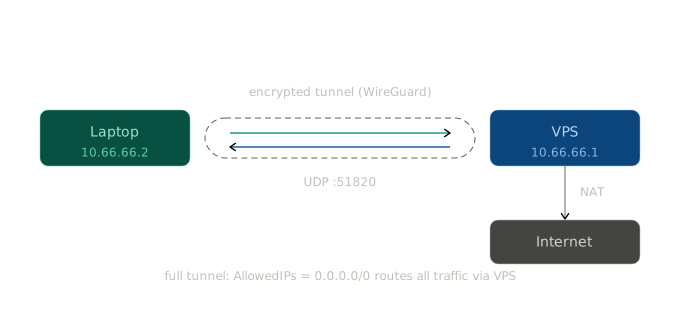
With full tunnel mode enabled, traffic flows: Laptop -> WireGuard tunnel -> VPS -> NAT -> Internet. The VPS becomes your gateway.
Server Setup
Install WireGuard and generate a key pair on the VPS:
apt update && apt install wireguard
mkdir ~/vpskeys && cd ~/vpskeys
wg genkey | tee privatekey | wg pubkey > publickey
Find the main network interface with ifconfig, you’ll need it for the NAT rule. Mine was enp1s0.
Create /etc/wireguard/wg0.conf:
[Interface]
PrivateKey = SERVER_PRIVATE_KEY
Address = 10.66.66.1/24
ListenPort = 51820

PostUp = iptables -t nat -A POSTROUTING -o enp1s0 -j MASQUERADE
PostDown = iptables -t nat -D POSTROUTING -o enp1s0 -j MASQUERADE
Enable IP forwarding so the VPS actually forwards packets for clients. Add net.ipv4.ip_forward=1 to /etc/sysctl.conf, then:
sysctl -pBring the server up:
wg-quick up wg0
wg
TIP: wg with no arguments is the fastest way to check peer status at any point. Run it constantly.
Client Setup
Generate a fresh key pair on the client. Do not reuse the server keys, every peer needs its own:
wg genkey | tee client_privatekey | wg pubkey > client_publickeyBack on the server, add the client as a peer in wg0.conf:
[Peer]
PublicKey = CLIENT_PUBLIC_KEY
AllowedIPs = 10.66.66.2/32
Restart the server, then write the client config:
[Interface]
PrivateKey = CLIENT_PRIVATE_KEY
Address = 10.66.66.2/24

[Peer]
PublicKey = SERVER_PUBLIC_KEY
Endpoint = YOUR_SERVER_HOSTNAME_OR_IP:PORT
AllowedIPs = 10.66.66.0/24
PersistentKeepalive = 25
sudo wg-quick up client
sudo wg showErrors I Hit
resolvconf: command not found — the client config had a DNS = ... line and wg-quick tried to call resolvconf. I just removed the DNS line temporarily. You can also apt install resolvconf if you need it.
Error opening terminal: xterm-kitty — nano failed when SSHing in from kitty. The VPS didn’t know the terminal type. export TERM=xterm before editing and it goes away.
Same keys on both sides — I accidentally used the server key pair on the client too. sudo wg show made it obvious: the client public key matched the server’s exactly. The rule is simple: [Interface] is this machine’s private key, [Peer] is the other machine’s public key.
Subnet conflict — I started with 10.10.0.0/24 and my laptop had a VMware interface on that same subnet. Two conflicting routes, packets going nowhere. Changed to 10.66.66.0/24 and it cleared up. Run ip route before picking a subnet.
Tunnel up, nothing passing — the interface came up but ping 10.66.66.1 hung. Client TX was climbing, RX stuck at zero, no handshake on either side. That means the server isn’t receiving anything. To check if traffic is even arriving:
tcpdump -ni enp1s0 udp port 51820Run it on the server and ping from the client. If tcpdump shows nothing, the problem is outside WireGuard.
Provider NAT — that was exactly the case here. My VPS sits behind a provider NAT and needs port forwarding, same as SSH. I created a UDP forwarding rule in the provider panel, and the client endpoint has to use the external assigned port, not 51820. That was the missing piece.
Confirming the Tunnel
Once the endpoint and port forwarding are right, ping 10.66.66.1 should work and wg on the server should show:
latest handshake: a few seconds agoFull Tunnel
By default I used split tunnel, which only routes VPN subnet traffic. To route everything through the VPS, change AllowedIPs on the client:
AllowedIPs = 0.0.0.0/0Verify with curl ifconfig.me. It should return the VPS public IP.
Adding the Phone
Same process as the laptop. Generate a key pair, add a peer entry on the server with AllowedIPs = 10.66.66.3/32, create a config, then import it via QR code:
apt install qrencode
qrencode -t ansiutf8 < phone.conf
Scan from the WireGuard mobile app.
Persistence and Breakage
Enable both sides to survive reboots:
systemctl enable wg-quick@wg0        # server
sudo systemctl enable wg-quick@client # client
A few days in, the tunnel went silent. wg showed latest handshake: days ago. In a provider NAT setup, the usual causes are the port forwarding rule disappearing, the endpoint IP changing, or NAT state expiring. Check those first.
What I Learned
This forced me to think in terms of interfaces, routes, NAT, peer identity, and packet visibility. VPN setup is not only about writing config files. It’s about understanding where packets go when things don’t work.
Tagged: linuxautomation